Cookie
We use cookies to analyze site usage and improve our website and services. For more information, read our Cookies Policy.
Connect with your car wherever you are with the Hyundai Bluelink.
Whether it's controlling different functions, navigating your way to your destination,
organizing your calendar, and setting safety limits, get all of these and more at your fingertips.
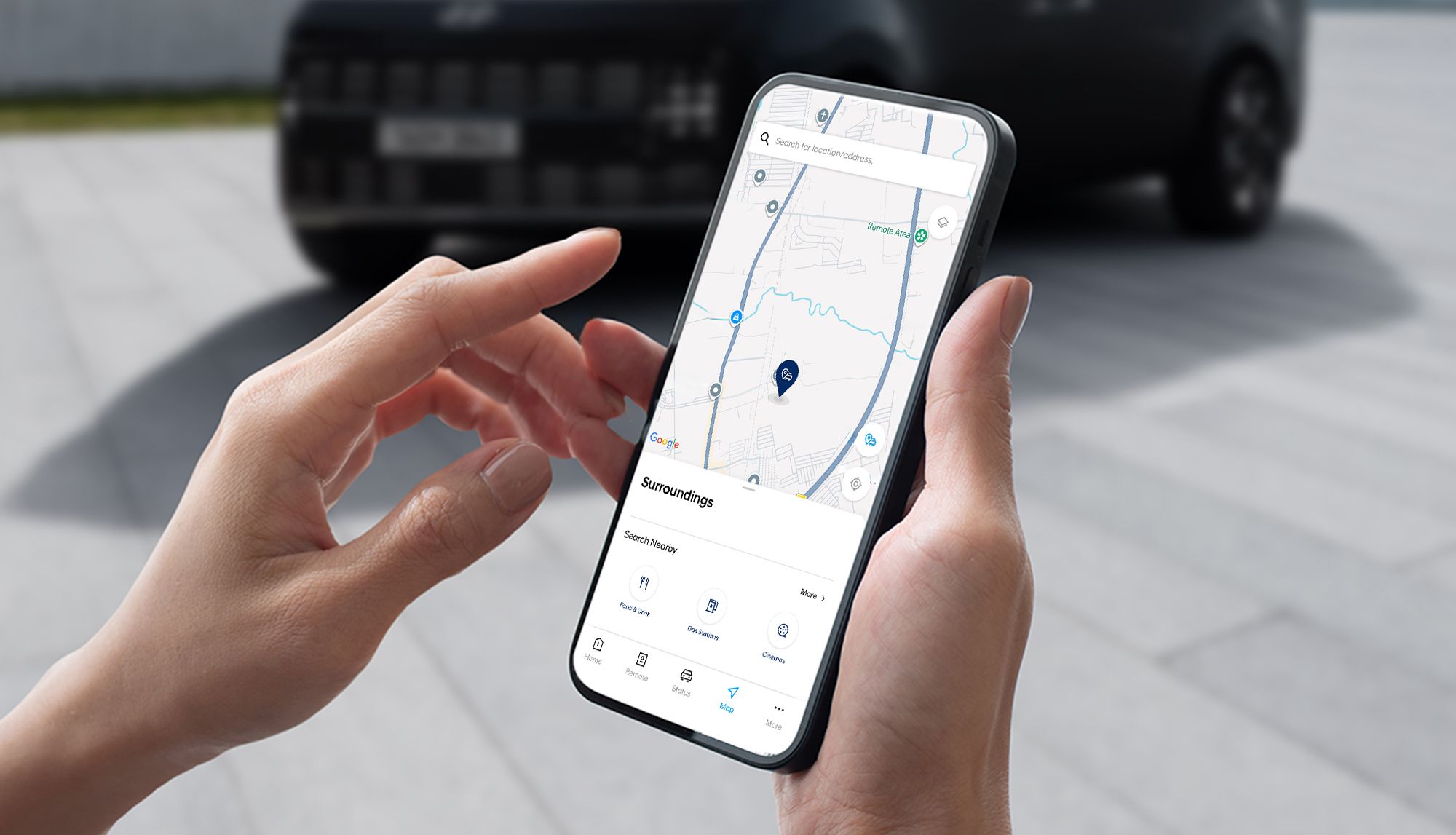
An easy-to-use map where you can search locations and lead you to where you need to be - displaying the directions in the vehicle's infotainment system.
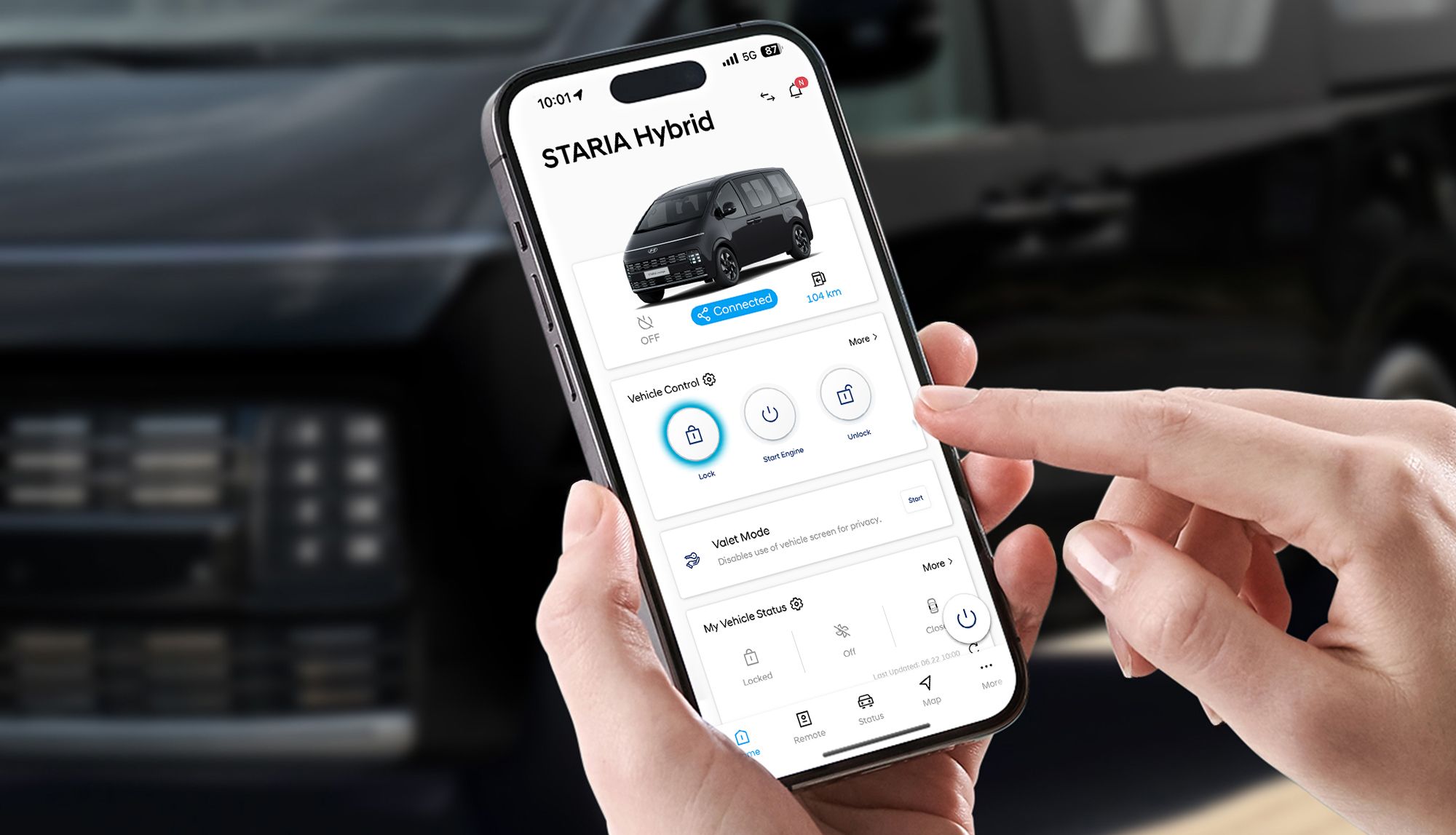
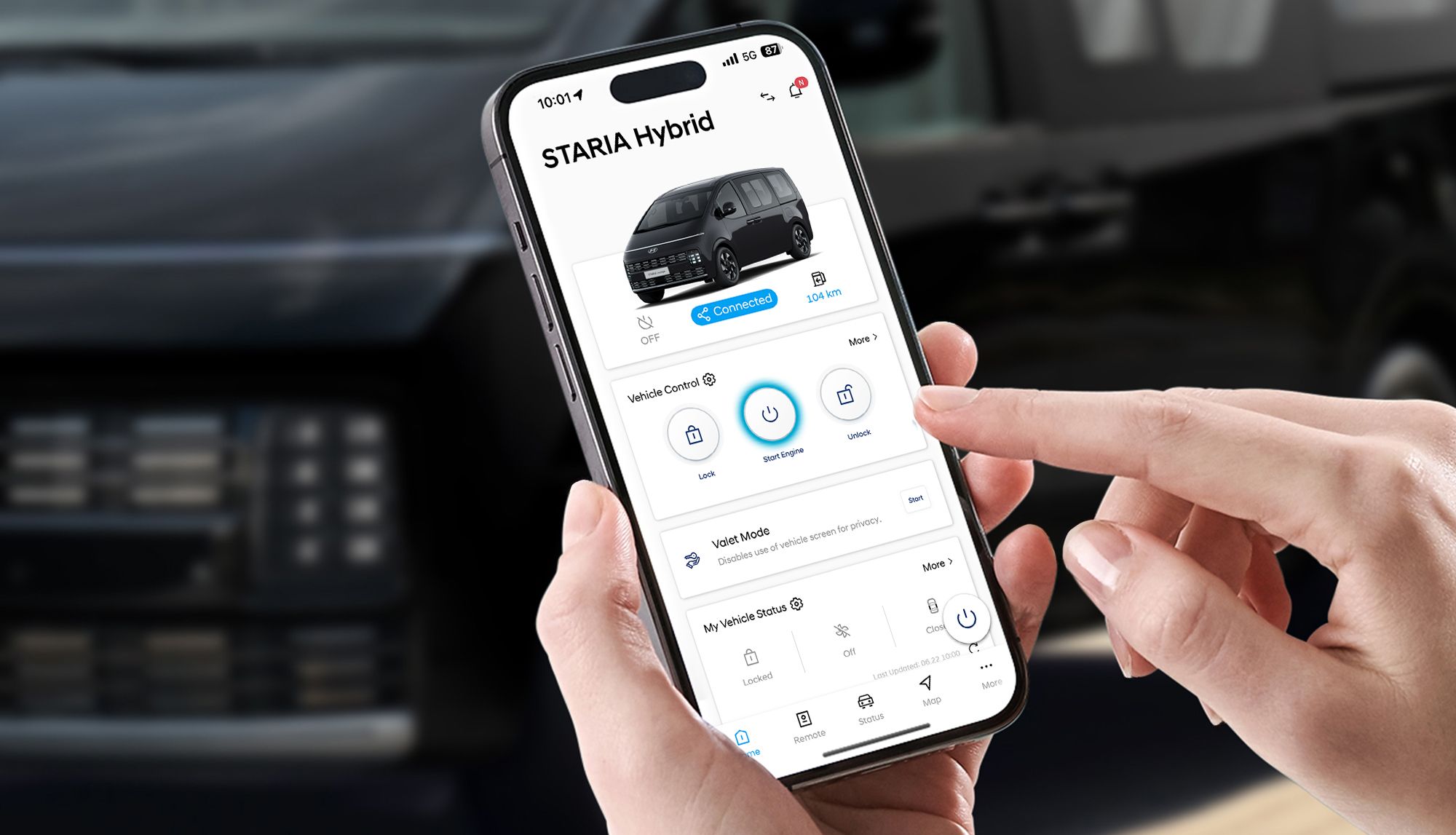
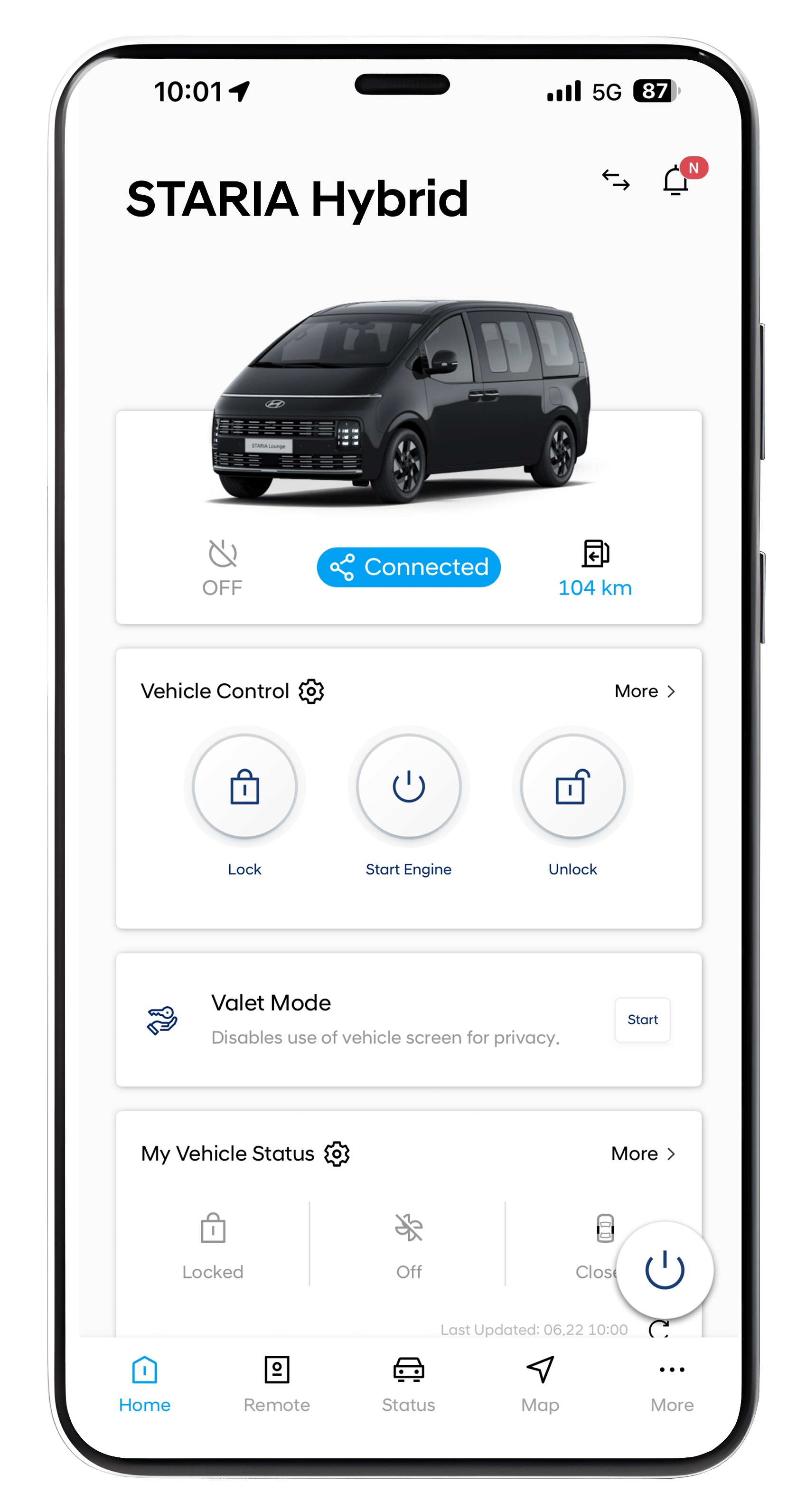
Forgot whether you locked your car? Get rid of your worries and lock or unlock your car through the Hyundai Bluelink app.
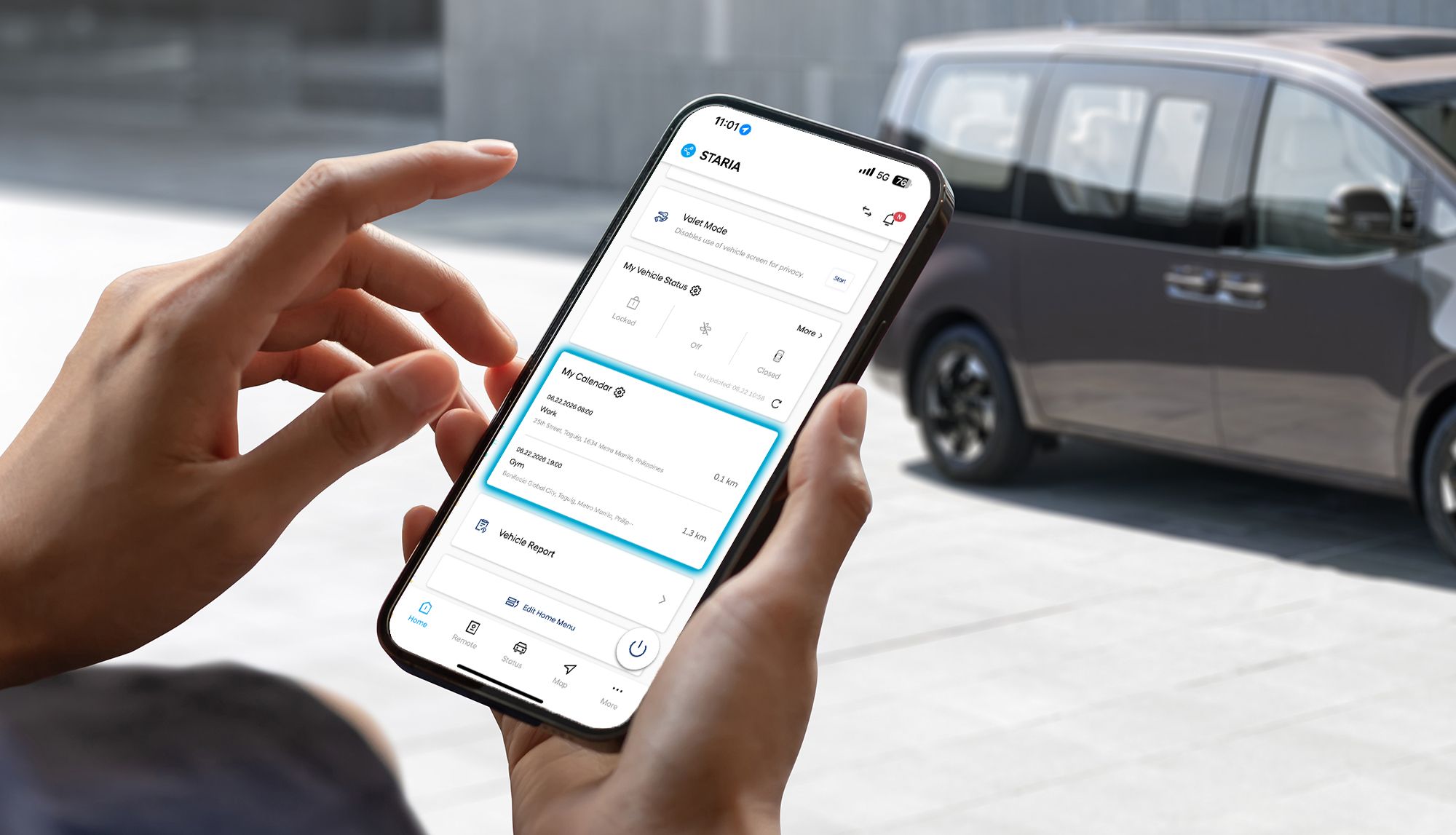
Never miss a schedule and place all your important dates in the calendar. You may also link your phone's calendar to make sure all the dates are reflected in the app.
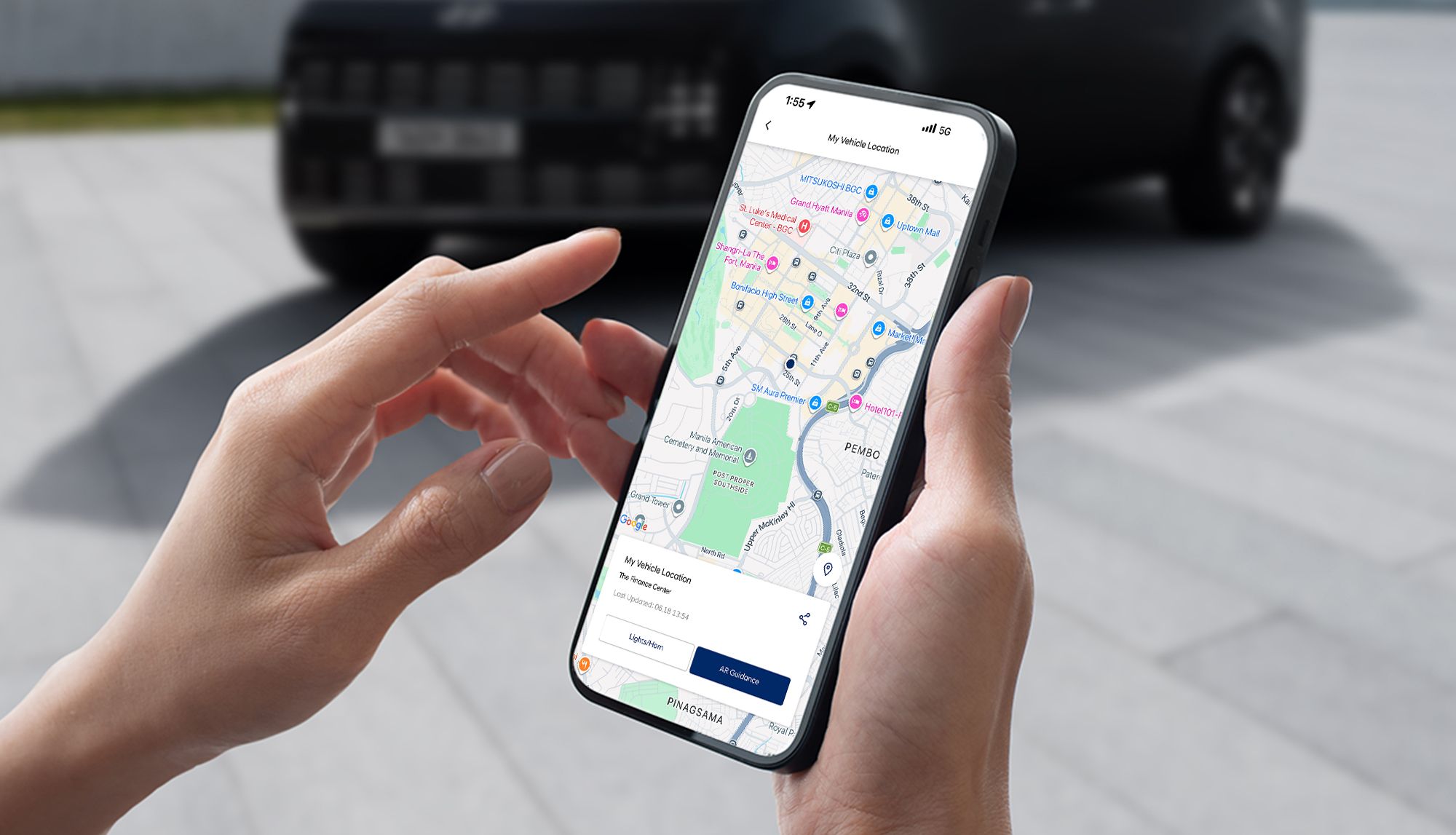
We know there are instances when we forget where we parked, but we got you covered with the Hyundai Bluelink app. Locate your car easily through the map feature.
In a hurry? Start your engine even before getting in your car. This feature will get your car warmed up so you can be on your way.
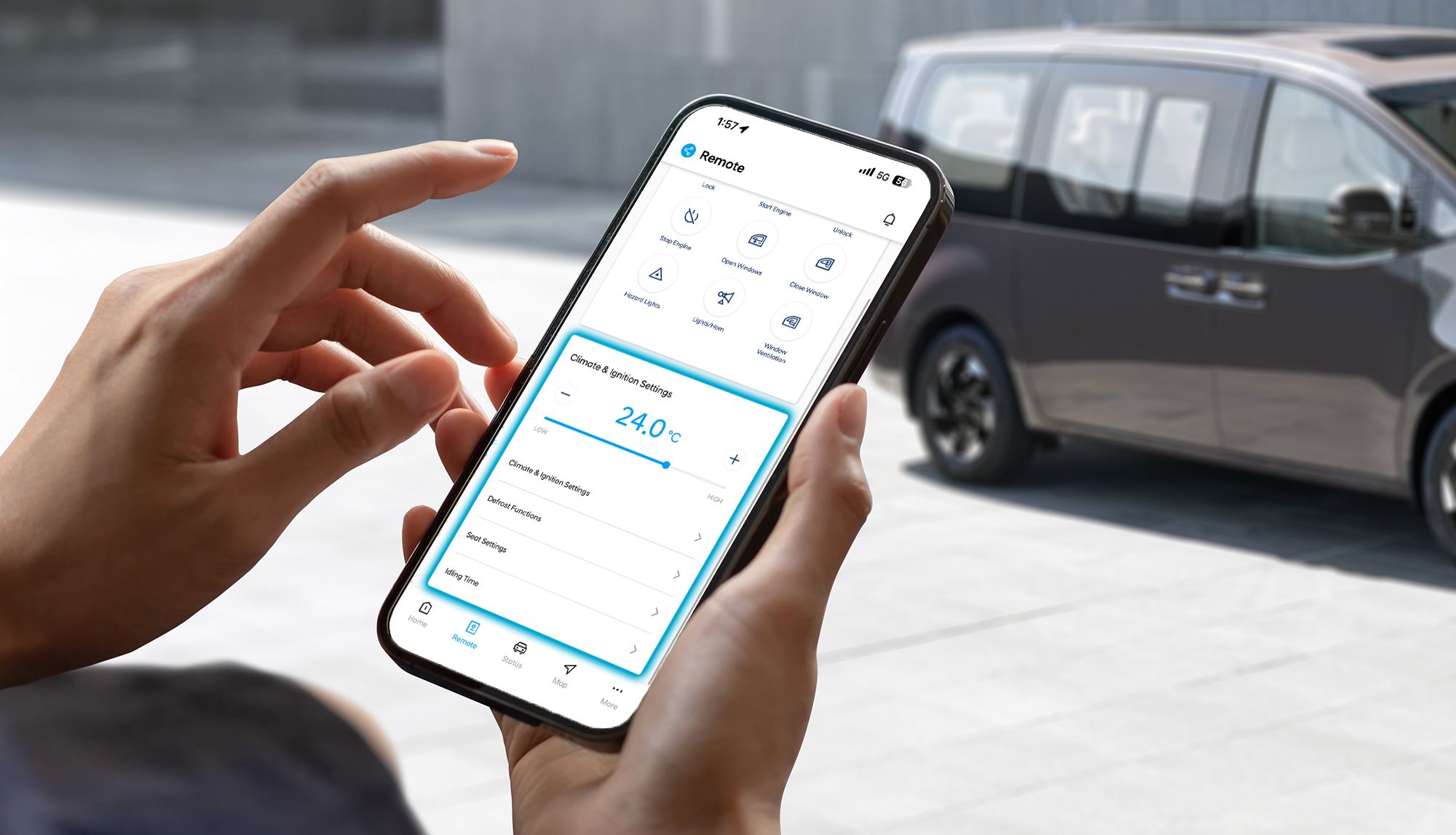
With the usual hot weather, adjust the temparature and activate the ventilated feature of the seats to cool the interiors before entering the car.
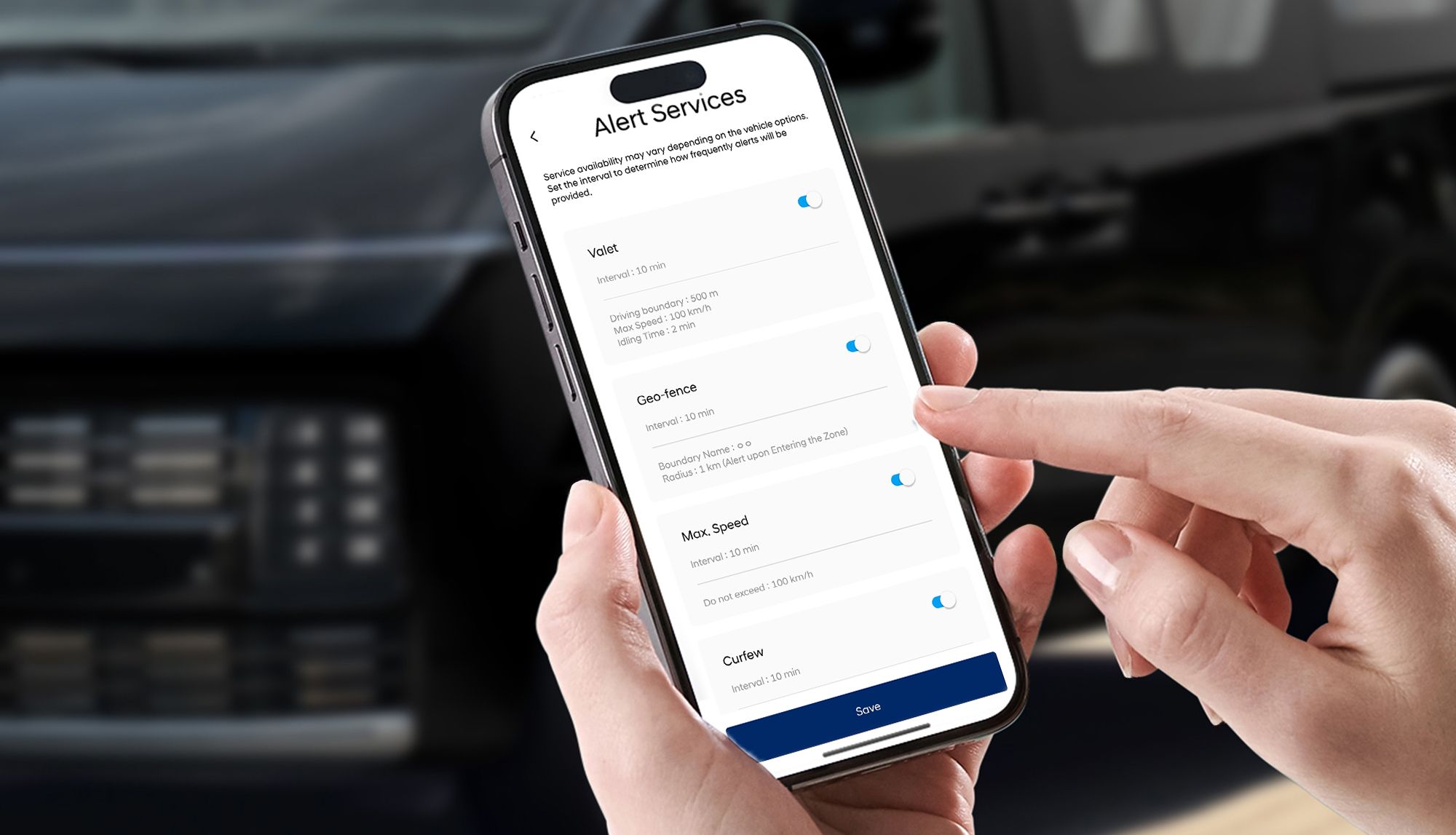
To ensure the safety of everyone inside the car, you may set the speed limit, geo-fence, and time-fencing to monitor the usage of the car.
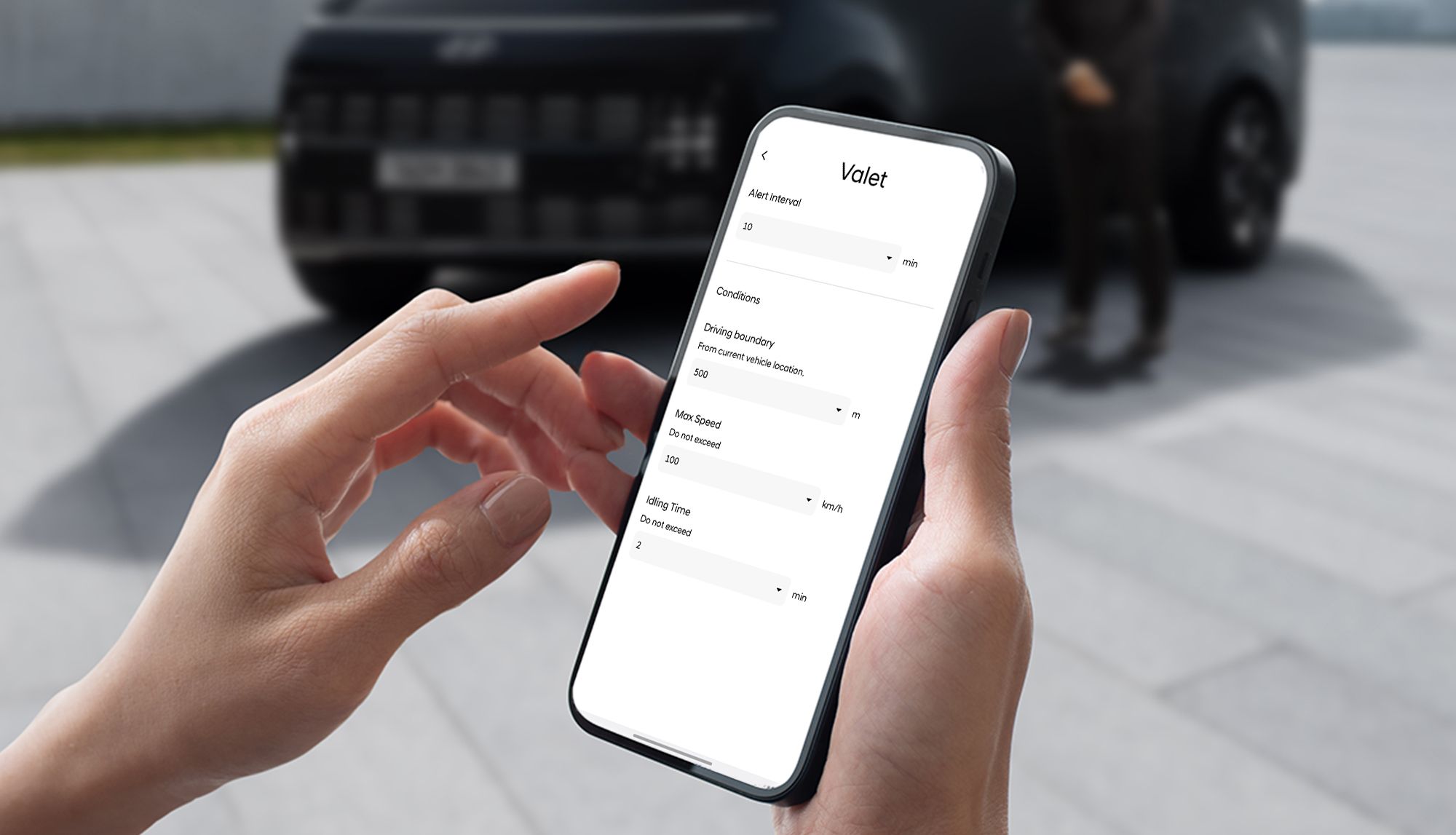
Whenever you endorse your car to a valet driver, you may set the Valet Alert to notify you if your vehicle travels beyond the area. It will also notify you if the set idle time and speed had been exceeded.
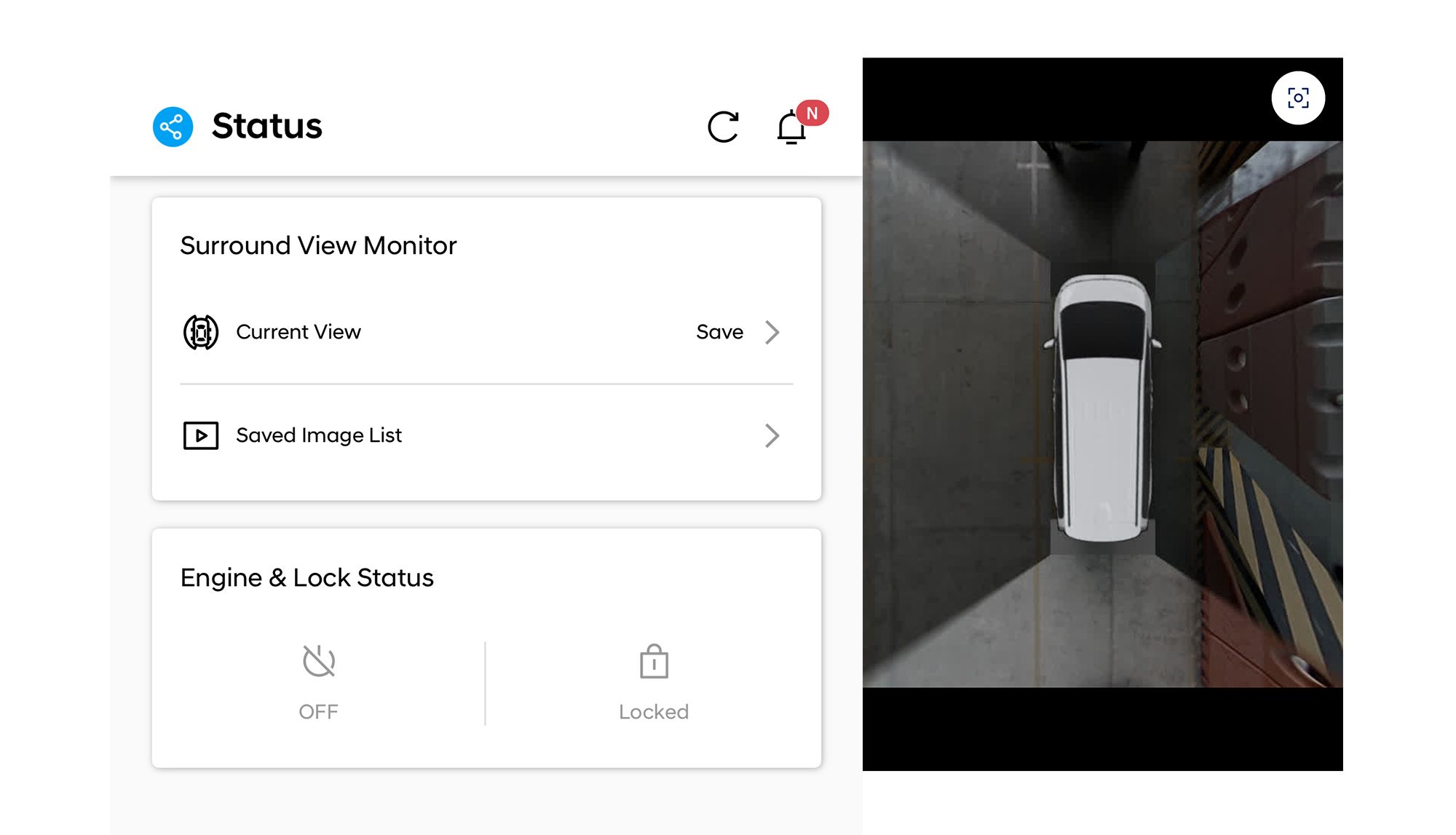
If you have to park along the streets or in an exposed parking area, you may check your car every once in a while through the app. You will be able to view around your car to make sure your car is safe.
Call Center: (02) 8868 8000 / 0917 868 9000
E-mail: customercare@hyundaimotor.ph
Operating hours: Monday - Friday, 9AM - 6PM
What is Hyundai Bluelink?
Bluelink is a dynamic and innovative connected car solution that combines safety and remote functionality into a complete package. It helps simplify the life of Hyundai owners and offers convenience at the push of a button.
Is there a hotline for any questions regarding Bluelink?
Yes. You can reach customer support at (02) 8868-8000.
You can also access this number through the Bluelink app by tapping "More" and then selecting "Call Customer Service."
I just purchased a brand new Hyundai vehicle. Do I need to pay to enroll in Bluelink?
No, you do not need to pay to enroll Bluelink services as you receive 3 years of complimentary Bluelink services with the purchase of a new Hyundai vehicle. After the free 3 years trial period, if you wish to continue with your Bluelink services, charges may apply.
I bought a used car. Can I use Bluelink?
Yes. Bluelink is available to both new and subsequent owners, provided that the vehicle is still within its warranty period or has an active Bluelink subscription.
If the vehicle is not currently enrolled to a previous owner, you can enroll in Bluelink using the Bluelink app and your vehicle.
If the vehicle is still enrolled to a previous owner, please contact the Hyundai Customer Care Center at (02) 8868-8000 and request ownership transfer assistance. As part of the verification process, you may be asked to provide copies of the following documents:
Valid government ID
OR/CR
Transfer of Ownership
Once ownership has been verified, the Customer Care Center will assist in making the vehicle ready for Bluelink enrollment. Bluelink services will remain available until the end of the applicable warranty or subscription period. Renewal options and related details will be announced separately.
How can I enroll Bluelink service?
Bluelink can be enrolled either through your in-car infotainment system or through the smartphone app. Enrollment through the infotainment system is simple and quick but will be offered with only a limited range of services due to privacy and safety issues. To use all services, customer will need to enroll through the Bluelink App.
How can I enroll through the infotainment?
1. Click ' Activate Service' button from Bluelink menu in the infotainment system.
2. Click 'Agree' on the Terms & Conditions and Privacy policy.
3. Bluelink services are now activated. Now your vehicle is CONNECTED. To enjoy the full range of servcies, please enroll through the Bluelink Smartphone app.
How can I enroll through the Bluelink Smartphone App?
1. Download 'Bluelink' App from the app store (Apple AppStore , Google PlayStore).
2. Create an account - use your e-mail account.
3. Enter your mobile number.
4. Verify your mobile number with one-time verification code.
5. Add a new vehicle to your account.
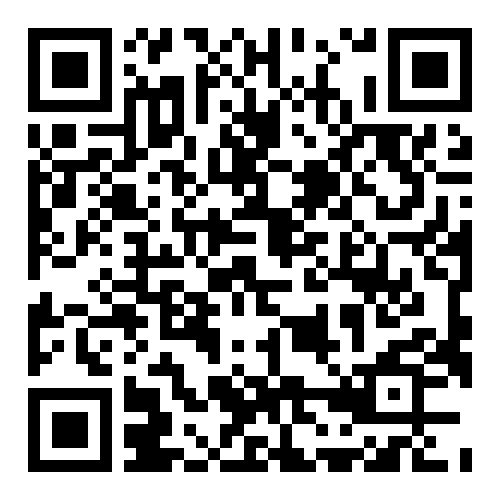
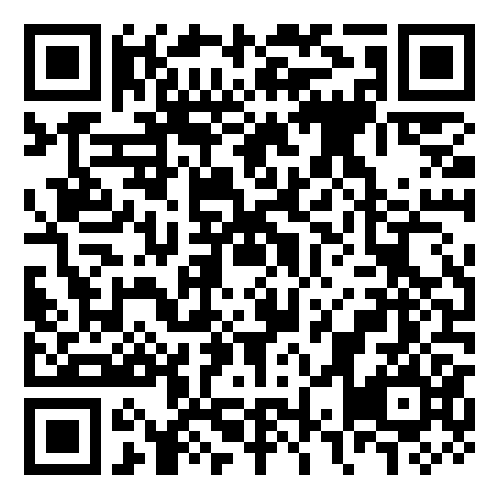
6. Enter your vehicle VIN (Vehicle Identification Number) through scan QR code or manually.
7. A 6-digit verification code will be sent to your infotainment system.
8. Enter the same verification code in your mobile app and now you can enjoy the complete suite of Bluelink services.
Note: To complete this process, make sure that you have physical access to your vehicle and the vehicle is parked in a location with good mobile network coverage.
Where can I find my VIN number?
Your vehicle VIN information is available in your infotainment system. Go to Bluelink Menu from Home screen and then Bluelink Settings. Here you can find the QR code for VIN number
I want to discontinue with the Bluelink services.
If you wish to discontinue with the Bluelink services, you can terminate your account from Account Settings menu in the Bluelink app. Considering safety, you will be requested to contact our call centre (02-8868-8000) and upon confirmation of your ownership your service will be discontinued.
What should I do before selling my vehicle?
When transferring the vehicle ownership, we recommend you to un-enroll the Bluelink service. Please call the Bluelink Call Center (02-8868-8000) to assist you with un-enrollment.
How do I change my password?
You can change your password from Account Settings menu under "More" in the Bluelink App.
Can I share Bluelink app with others?
The vehicle owner, master user of Bluelink app can give the authority to others in order to use the Bluelink services. From "More", select Vehicle & Service Settings, Tap on "Share Vehicle" then enter the mobile number of sharing user and create a sharing pin code. Share this pin code with the sharing user. Now the sharing user will be notified about the access sharing and if he enters same sharing pin code, then he will be able to share the Bluelink app with you.
Note that only Main owner of account has access to Alert Settings and Alert Services (Valet, Geo-Fence, Curfew and Speed settings).
How do I change my phone number associated to my account?
You can change your phone number Account Settings menu in the Bluelink App. In "More" , select Account Settings then Tap on Reset Phone Number and then you will be logged out. Now you will be asked to Re-login and after login, you will be asked to enter your new mobile number and verify with a one-time verification code.
I am unable to receive GPS information. What should I do?
Check whether your vehicle is parked in areas where the GPS reception is poor such as underground parking lots, between mutli-storied building etc., Move your vehicle to a location with good GPS reception and all functions will operate normally. If the satellite reception is poor even in the open area, please call the Bluelink Call Center (02-8868-8000).
What do I do if I forget or want to update my PIN?
You can update your PIN from Account Settings screen in the Bluelink smartphone app. In "More" , select Account Settings then Tap on Reset PIN and then you will be logged out. Now login with your credentials and now you will be redirected to PIN change page to create a new PIN.
Where can I find the status of my subscription?
You can find your current subscription status from Vehicle & Service Settings screen in the Bluelink smartphone app.
What happens after my subscription expires?
After your subscription expires, you can renew your Bluelink subscription through the Bluelink app. Subscription renewal details will be announced at a later date.
What features can I use with my Bluelink Mobile App?
Once your vehicle is enrolled with Bluelink services, you will be able to utilize remote control features like Remote Engine and AC Start, your vehicle status, know the exact location of your vehicle, your past trips information, have a comprehensive report on your vehicle's health and more.
How do I cool or warm my vehicle's interior using Bluelink?
To cool or warm your vehicle's cabin, use the Remote Engine and A/C Start feature in the Bluelink app and set your desired temperature. Your vehicle will then start with the selected climate settings.
What is Find My Car and how to you use this feature on my mobile app?
Find My Car allows you to find your vehicle location. just tap on find My Car icon on the home screen of the Bluelink app and enter your 4 digit PIN. Then your vehicle location will be popped up on the screen. Now tap on the vehicle icon, you will be able to see the Parking location.
What is the Bluelink Vehicle Health Report?
The Vehicle Health Report contains a comprehensive diagnosis information of your vehicle which will help you to maintain your car in a good condition for longer run life.
Click on "Status" on the main page, and scroll down to "Vehicle Report" to check diagnostics of your vehicle.
Why does the remote engine start feature not work sometimes?
For Remote Engine Start to work successfully, please make sure that the below conditions are met:
- For Auto Transmission vehicle, the Gear Shift Level must be in P (Park) Position and all the doors including hood and trunk must be closed and locked.
- For manual transmission, the Gear Shift Lever should be in N (Neutral) position.
- Vehicle battery level should be at optimal level for engine to start.
Remote Engine start possible only after 30 seconds of ignition off and all doors including hood and trunk are closed and locked, it’s been less than 7days since your vehicle’s last ignition OFF and the vehicle is located in an open area with optimal mobile network coverage.
Please refer to the owner’s manual for more details.
What is Remote Engine Start and how does it work?
Remote Engine and AC Start allows you to start your vehicle's engine remotely from your home at your convenience. Remote Engine and AC start includes in car climate settings like temperature, front window defrost, rear window heater. All this is possible with your Bluelink Mobile App.
The following conditions must be met for a vehicle to be started remotely:
• All the Vehicle doors including trunk and hood must be closed and locked
• Gear shift lever must be in 'P' position
• Key fob cannot be in vehicle
• Brake pedal should not be in pressed position
• It's been more than 30 seconds since you locked your vehicle
• it's been less than 7 days since vehicle's last ignition off and the vehicle is located in an open area with good mobile network reception.
Please use the Remote Engine Start and Remote Horn & Light features in accordance with any local laws, rules or ordinances in effect at your vehicle’s location.
Why sometimes it takes long time to acknowledge remote engine start command?
Sometimes it might take a long time to acknowledge your remote engine and AC start command. Usually, to avoid any battery discharge, your vehicle will be in a state of sleep. Therefore, when an Engine Start command is given, a wake up message is sent to the vehicle and it takes a little time for the vehicle to boot up and acknowledge the Engine Start command.
Bluelink Guide
Learn More